


Star Trek: Voyager — Across The Unknown Manual Save Game Mover Tool (Free Download)
If you’ve been playing Star Trek: Voyager – Across The Unknown, you’ll already know the game uses an Ironman-style autosave system.
That means:
- You can’t freely create manual saves
- A bad decision or unlucky event can permanently cost crew members or progress
- You’re relying entirely on the game’s limited autosave points
For some players that’s part of the experience. For others… it’s frustrating.
After reading a community workaround showing how to manually copy save files, I decided to build a small utility that automates the process safely and cleanly.
Don’t own the game yet?
Download
Latest version: 1.0 Last Updated 20/02/2026
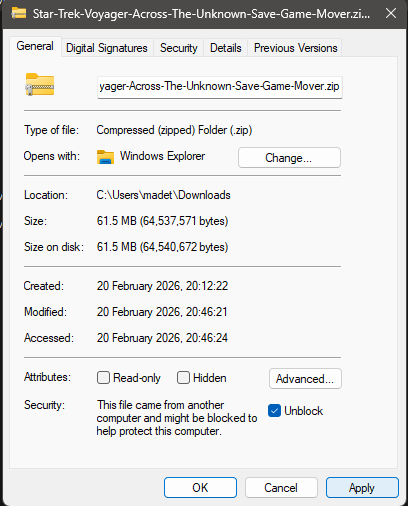
Right-click the downloaded ZIP file → Properties → tick Unblock → Apply, then extract and run normally.
This is a standard Windows security feature for files downloaded online.
Verify download integrity
SHA-256 checksum:
71fcbbac7ca4dce493f0b25326648ab0b010ce1f781c00e49b02d9eae27c10abThis allows you to confirm the file you downloaded is the original unmodified release.
Windows verification:
certutil -hashfile "Star-Trek-Voyager-Across-The-Unknown-Save-Game-Mover.zip" SHA256What the tool does
The program watches the game’s save folder and automatically creates timestamped backups every time the game saves.
Instead of manually copying files yourself, it:
- Detects when the game writes a save
- Creates a historical backup copy
- Keeps the original file name intact
- Adds a timestamp after
.sav
Example:
00_GX_STV_SaveGame_0003.sav.20260220_184443To restore a backup, you simply remove the timestamp so the file ends with .sav again and copy it back.
How to use
1) Start safely
Launch the game and reach the main menu first. This avoids copying files while the game is actively writing them.
Disable Steam Cloud saves for this game.
2) Run the Save Mover
Open the program and you’ll see the detected save folder automatically filled in.
Click: Copy Existing Now — this creates an immediate snapshot.
Then click: Start Watching.
Now every autosave will be backed up automatically.
3) Restore a backup
- Return to the game main menu
- Open your backup folder
- Pick the save you want
- Remove the timestamp so it ends with
.sav - Copy it back into the game save folder
- Overwrite when prompted
- Load your profile
You are now back at that point in time.
Important notes
- The game only autosaves at certain events — no save event means no backup
- You may lose progress since the last autosave (this is unavoidable)
Why this exists (credit)
This utility was inspired by the community guide explaining how to manually copy saves:
https://steamcommunity.com/sharedfiles/filedetails/?id=3668989893
The guide explains the manual method; this tool simply automates it so players don’t have to constantly alt-tab and manage files themselves.
Suggestions or feedback
If you have ideas, improvements, or spot a bug, feel free to email me here
Disclaimer
This is an independent fan-made utility provided purely as a convenience tool to automate manual file copying.
Use is entirely at your own discretion and risk. The author accepts no responsibility for data loss, corrupted saves, or gameplay issues resulting from its use.
This project is not affiliated with, endorsed by, or associated with:
- gamXcite (developer)
- Daedalic Entertainment (publisher)
- CBS Studios
All trademarks and game content belong to their respective owners.
Enjoy your journey through the Delta Quadrant — with a little less RNG punishment.